How to Choose a Lightweight Laptop for Business Travel
Choose a travel laptop by mapping a normal day away from your main desk. Record the longest period without a reliable socket, the documents you use, the meetings you attend and the equipment you connect. A consultant editing presentations between customer visits has a different brief from an engineer who opens large project files or a manager who spends much of the afternoon in video calls.
Turn that description into three requirements: software that must work, connections that must be available and a carrying setup you are willing to use. These requirements create a useful shortlist before processor names and promotional battery figures complicate the comparison.

Resolve software and management requirements first
Ask your employer or IT provider about the operating-system edition, endpoint security, VPN, document-signing tools and account management. Include peripherals such as a specialist printer or presentation receiver. A familiar application name is insufficient evidence that every plug-in, security component and attached device will work on a particular platform.
Microsoft's Windows on Arm FAQ specifically identifies driver compatibility as a separate requirement. For any platform you are considering, check the developer's current support page and the exact version your organization uses. If a critical workflow is uncertain, resolve it before paying for a lighter chassis. A short supervised trial with your own work files is more useful than a generic demonstration.
Compare the complete carrying kit
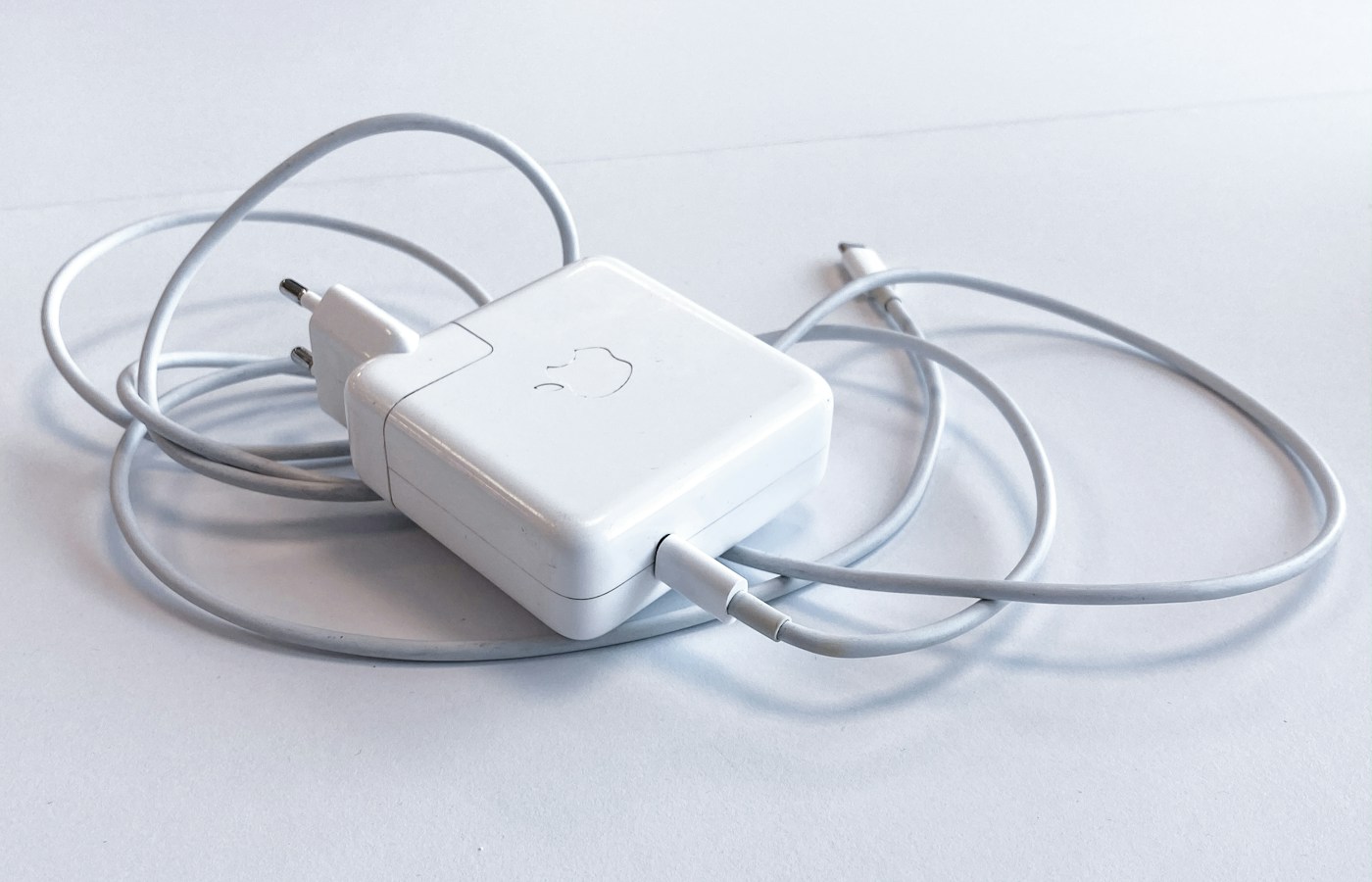
List everything that travels with the computer. A smaller laptop might need an adapter, a separate charger cable or a stand that another setup does not require. Use measured figures where available and label manufacturer starting weights clearly: a different display, battery or optional connection can change the finished configuration.
The following is a hypothetical packing comparison, not a measurement of products. It shows why a small chassis advantage can disappear once the working kit is assembled. The appropriate winner is the kit that meets the same requirements with a carrying burden you accept.
| Illustrative item | Setup A | Setup B |
|---|---|---|
| Laptop | 1,050 g | 1,180 g |
| Charger and charging cable | 230 g | 180 g |
| Required meeting adapter | 110 g | 0 g |
| Protective sleeve | 160 g | 160 g |
| Total | 1,550 g | 1,520 g |
Match endurance evidence to your workload
Write down your longest planned interval between charges and identify what happens during it. Six hours of intermittent reading is different from six hours of conferencing. Microsoft's battery guidance shows that settings and system activity influence consumption; brightness, background work and power settings therefore belong beside a battery result.
For each shortlisted configuration, record the test workload, display, brightness, operating mode and battery size. A manufacturer's video-playback claim and a reviewer's web-browsing test are separate observations. Neither establishes your exact call-day runtime. Keep a practical reserve and confirm a charging opportunity for unusually demanding days. If you already own a comparable laptop, a few days of ordinary battery-use notes can give the new purchase a clearer target.
Draw the meeting connections together
Sketch the laptop with the charger, screen, camera, headset and network connection attached at the same time. Count usable ports after charging is connected, and check whether nearby connectors obstruct one another. A hub's input socket and its output sockets serve different jobs, so a photograph of several connectors does not establish the complete setup.
Microsoft's USB-C troubleshooting guidance distinguishes the capabilities of the computer, charger and cable. Read the laptop's port specification for charging and display support, then verify the proposed adapter against that specification. Save the exact adapter reference with the purchase record so the working combination can be replaced later.
Try the screen and input devices with your own documents
Open a dense spreadsheet, a presentation and a long document at the scaling you intend to use. Check how many rows remain visible, whether text is comfortable at your usual distance and whether reflections interfere in a bright room. Display size alone does not describe the usable workspace.
Type for several minutes and test the trackpad, webcam framing and headset connection. If much of your work happens at a destination desk, include the external monitor and keyboard arrangement in the decision. A travel computer should fit both the journey and the place where the longest work session happens.
Keep a short purchase record
Finish with a single comparison sheet containing the exact configuration, accepted software, complete kit weight, battery evidence, simultaneous connections and written service arrangements. Identify who handles a repair when you are away, whether storage and memory meet the planned ownership period, and how your files will be recovered if the device is unavailable.
Choose the setup with the fewest unresolved requirements. A clear record also makes an eventual replacement easier: you can compare it with a working travel system rather than rebuild the brief from an advertisement.
Summary
Build a travel-laptop shortlist around your software, time between sockets, meeting connections and the weight of the complete working kit.
- Check essential applications, drivers and employer requirements before comparing size or weight.
- Count the charger, adapters and case when deciding which setup is easiest to carry.
- Compare battery evidence for the actual screen and configuration you intend to buy.